After purchasing VPS server package and getting access to a whole server, I was thinking what I must do with all that power. Suddenly I realized that it’s been sometime I had access to php, MySQL 🙂 . It’s been actually a while since I worked on any linux based system. This is evident from the fact that there was a time I was actively working on linux, but that was over 6 years back ! ( as shown in posts below)
- Brand new sleek openSuse 11.0 for you
- nrg to iso -Burn images in Linux
- Virus Attack!!
- Xandros installation complete
So as a first step, I am planning to install WAMP on my system and configure WordPress
- Went to the download section of http://www.wampserver.com and picked up the 64 bit version of wampserver
- Installed ‘wampserver2.5-Apache-2.4.9-Mysql-5.6.17-php5.5.12-64b.exe’
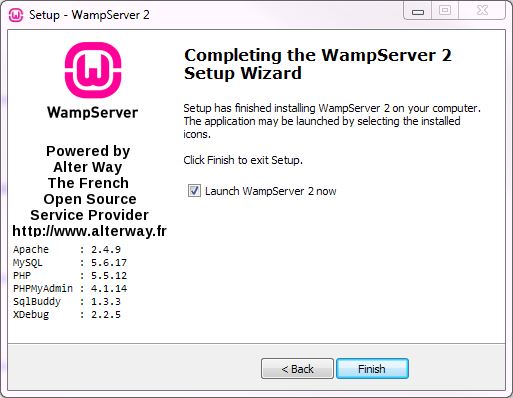
- This was how the final installation screen looked like. The installation took about 3 – 5 minutes
Although I tried with both 64 bit and 32 bit versions of the installer, the system was extremely slow beyond compare. Pages loaded extremely slow and also I got time out error from PHP too. After lot of Googling and even changing contents of the host file and disabling IPv6 (Adding a new key called ‘DisabledComponents’ in HKEY_LOCAL_MACHINE\SYSTEM\CurrentControlSet\services\TCPIP6\Parameters) nothing seemed to work and I was about to give up hope, that I decided to give a try for XAMPP.
Downloading and installing XAMPP
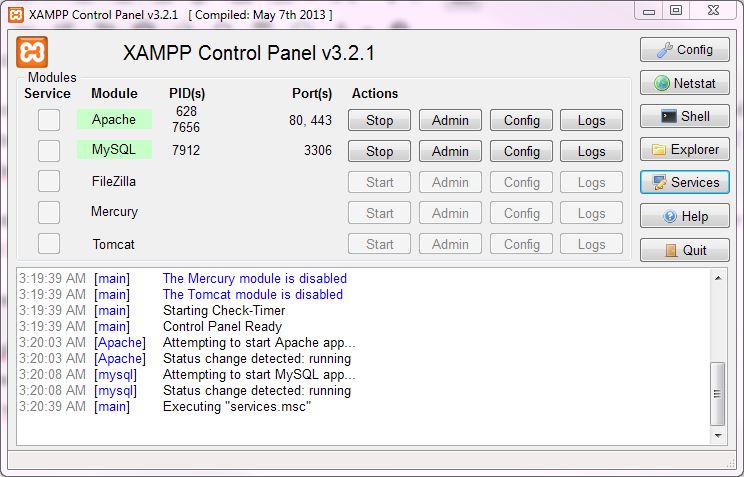
Although many people have comments in many forums, that XAMP is a bloated software, I still decided to give a try. So when the installation screen presented itself with option to choose what components I wanted to get installed, I opted ONLY for AMP(Apache, mysql and PHP) and excluded FTP server and Perl from the list
Installation went on smooth and starting with phpmyadmin, I found much faster rates. When I did the WordPress installation ( details mentioned below ) I knew I was in for an amazing ride
Installing WordPress
- Logged into phpmyAdmin
- Created a new database ( from the database tab ) wp_mytest
- Downloaded wordpress-4.2.2.zip from the wordpress site https://wordpress.org/download/