Once I am done with all the edits in lightroom and try to export the image, I see a different image. That is, the image in light room, looks so different ( in terms of color ) than one that is exported. Although I found lot of suggestions in several forums, to buy an expensive tool and calibrate your monitor, for me the following steps worked out like a charm
Changing color profile in Windows
Since my monitor was using a different color profile, than that of the exported image, that was the root cause for this issue. Changing color profile in windows is pretty easy
Start button, typing color management in the search box, and choose Color Management. A window like the following will come up ( see below )
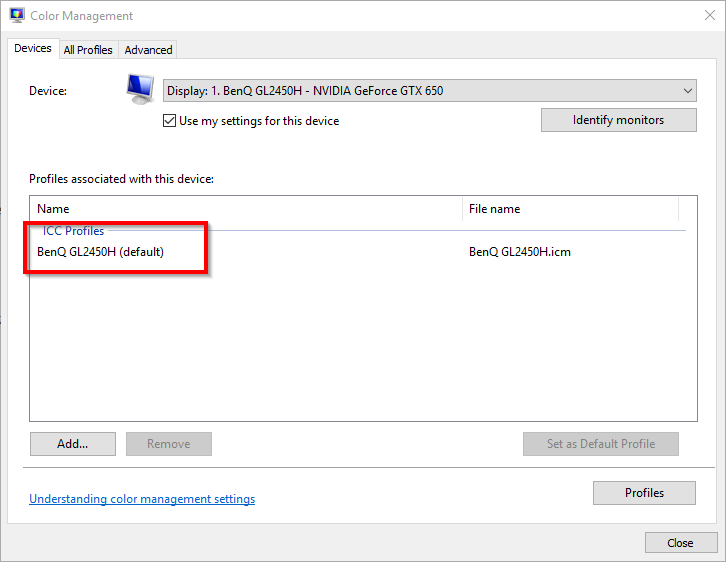
- Click the Devices tab ( which is selected by default )
- From the Device list, select your monitor entry. In case you are not sure about which monitor to choose, press “Identify monitors”. This will display a large number on your displays for identification.
- Select the Use my settings for this device check box
- Make a note of the currently active ICC Profile (the one marked “default“)
- Click Add …
- In the upcoming Associate Color Profile dialog box, click sRGB IEC61966-2.1 in the list, and then click OK (
- If you see more than one sRGB IEC61966-2.1 in the list as in the screen shot above, chose the sRGB Color Space Profile.icm profile.
- Back in the Color Management dialog, click the newly added sRGB IEC61966-2.1 profile and click Set as Default Profile. The sRGB IEC61966-2.1 profile will now be used as the default profile for your monitor. Click close