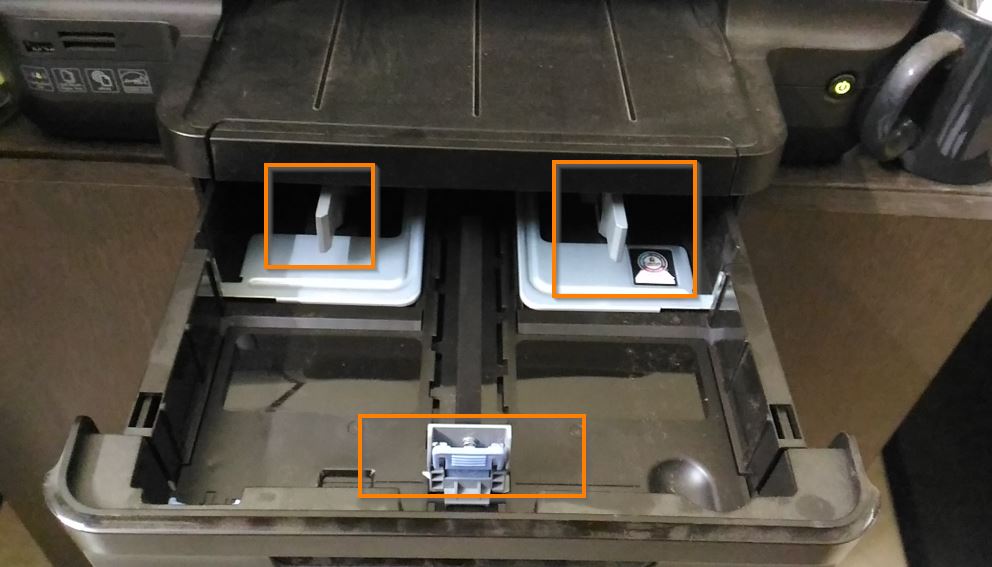
- Adjust the slider in the bottom tray to match the size of the envelope ( as shown above )
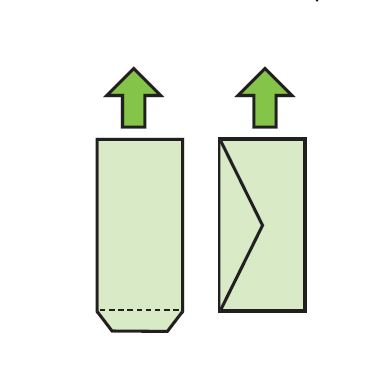
- Place the envelope in the following manner ( that is, the flap should be facing up – you should be able to see the flap )
- Now, open word document and select ‘Print‘ and select printer properties ( see below). Click on ‘Paper/Quality‘ tab and select paper size as ‘Envelope #10‘.Click on ‘OK‘
- Also from the drop down list, choose ‘Landscape orientation‘ and ‘Envelope #10 4.12″ x 9.5″ ‘
- Now you could start adding content in your page, which needs to be printed
NOTE: This is the closest I can get with respect to envelope size, that I have, namely 5″ x 11″

Do not forget to adjust the sliders back to place, once you are done with the printing