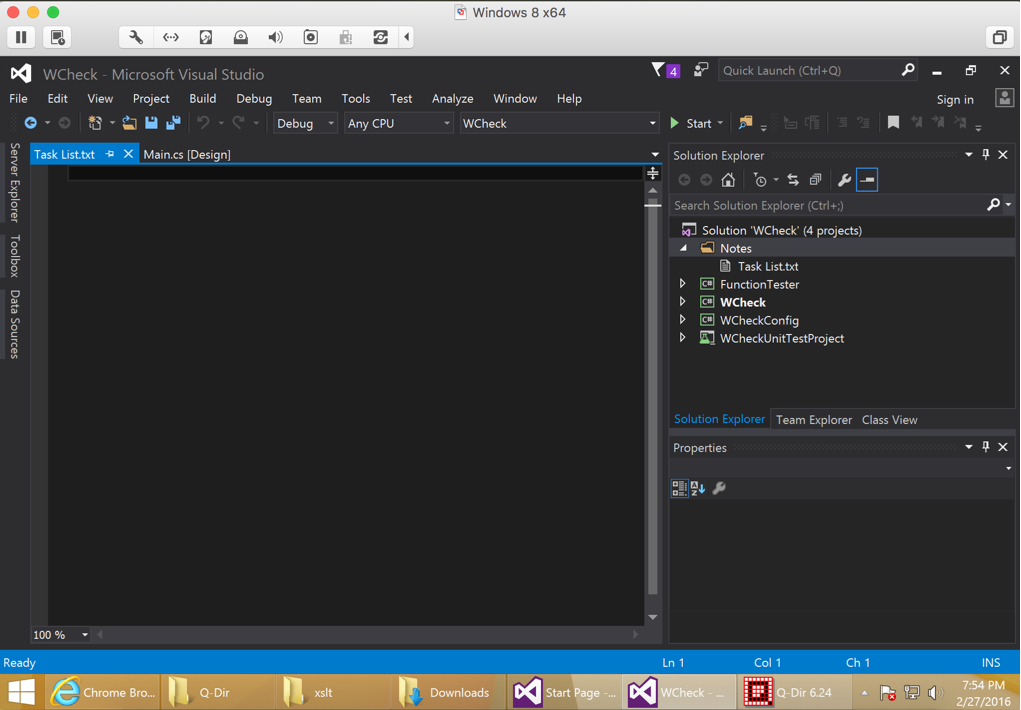
Downloaded VMWare fusion and installed it on my Mac. Created a new virtual machine ( 2 GB RAM and 60 GB HDD) Downloaded and mounted the Windows 8.1 ISO. Mounting ISO is done as follows
- Click ‘Virtual Machine‘ menu and choose ‘CD/DVD‘ and then click ‘Choose Disc or Disc image‘
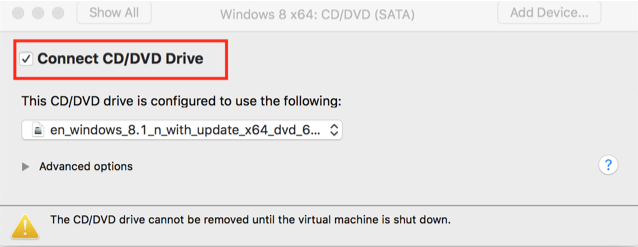
- After this again click on ‘Virtual Machine‘ menu and choose ‘CD/DVD‘ and then click ‘CD/DVD ( SATA ) settings ( see below ). Now put a check mark, next to ‘Connect CD/DVD drive‘
Next enableVMWare tools, which will enable high resolution ( required for your mac 😉 ) and folder and file sharing. To do this, go to ‘Virtual Machine‘ menu ( while the windows guest OS is open ) and select ‘Install VMWare tools‘
After this, dowloaded the community version of Visual Studio 2015, which is free and has all the tools that I require for code development. During installation, I chose the option ‘Typical‘ instead of ‘Custom‘, since ‘Custom‘ option showed only Web development tools. Installation took about 30 minutes and now I can proceed with C# code development on Mac
Visual Studio running on Mac with the help of VMWare fusion