After purchasing my windows hosting account yesterday, I tried deploying my time tracking app code on the server today and I was so happy to see the results
http://android-diary.net/app/Default.aspx
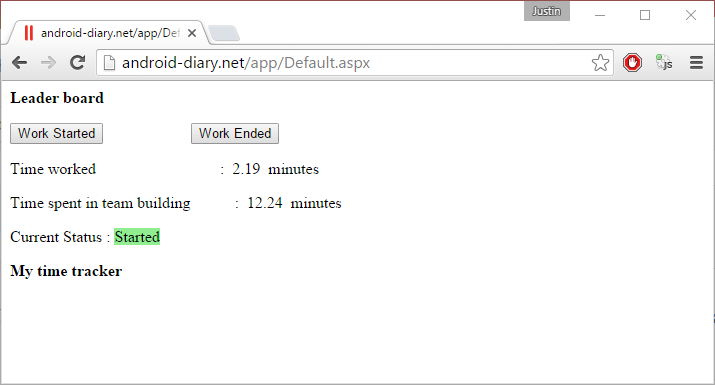
These are the steps that I followed, for deployment
Copy files to server
- Create a new folder under httpdocs ( virtual directory configured is IIS)
- Copy the files ‘Default.aspx’, ‘Default.aspx.cs’ , ‘Default.aspx.designer.cs’ to the folder along with web.config file
Change .net version to 4.0
The default version on the hosting package was .net 2.0 and I wanted to make sure, I had the latest version for my apps
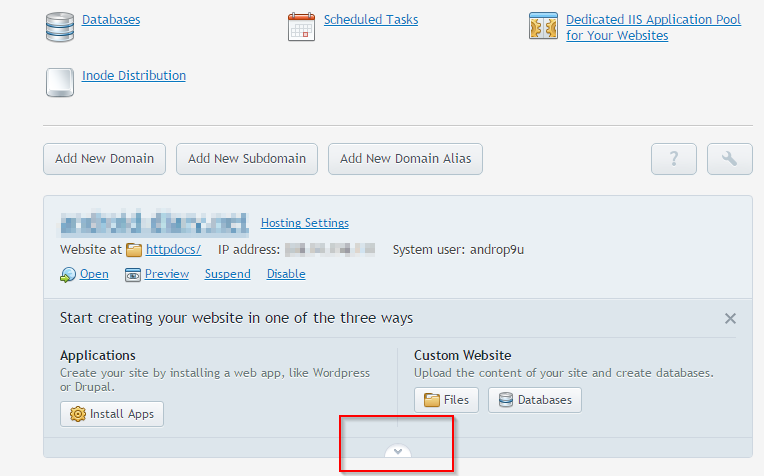
- Click the downward pointing error on the plesk homepage ( as shown above ). From the list that pops up, choose ‘ASP.NET settings‘
- Now click on ‘Change version‘ and choose .net 4.0 from the list. Once you do that, you should be able see the version number ( as shown below )

CodeBehind to CodeFile

Change CodeBehind ( shown above ) to CodeFile=”Default.aspx.cs”. Otherwise, the aspx page won’t be able to access the name space ‘EasyTracker.Default’ ( see above )
Disable custom errors
By disabling custom errors, you would be able to see the error in the current page itself
<configuration>
 <system.web>
 <compilation debug="false"/>
<customErrors mode="Off"  />
 </system.web>
</configuration>
NOTE: Also if you still find any issue, please enable ‘Read & Execute’ permission for all the files