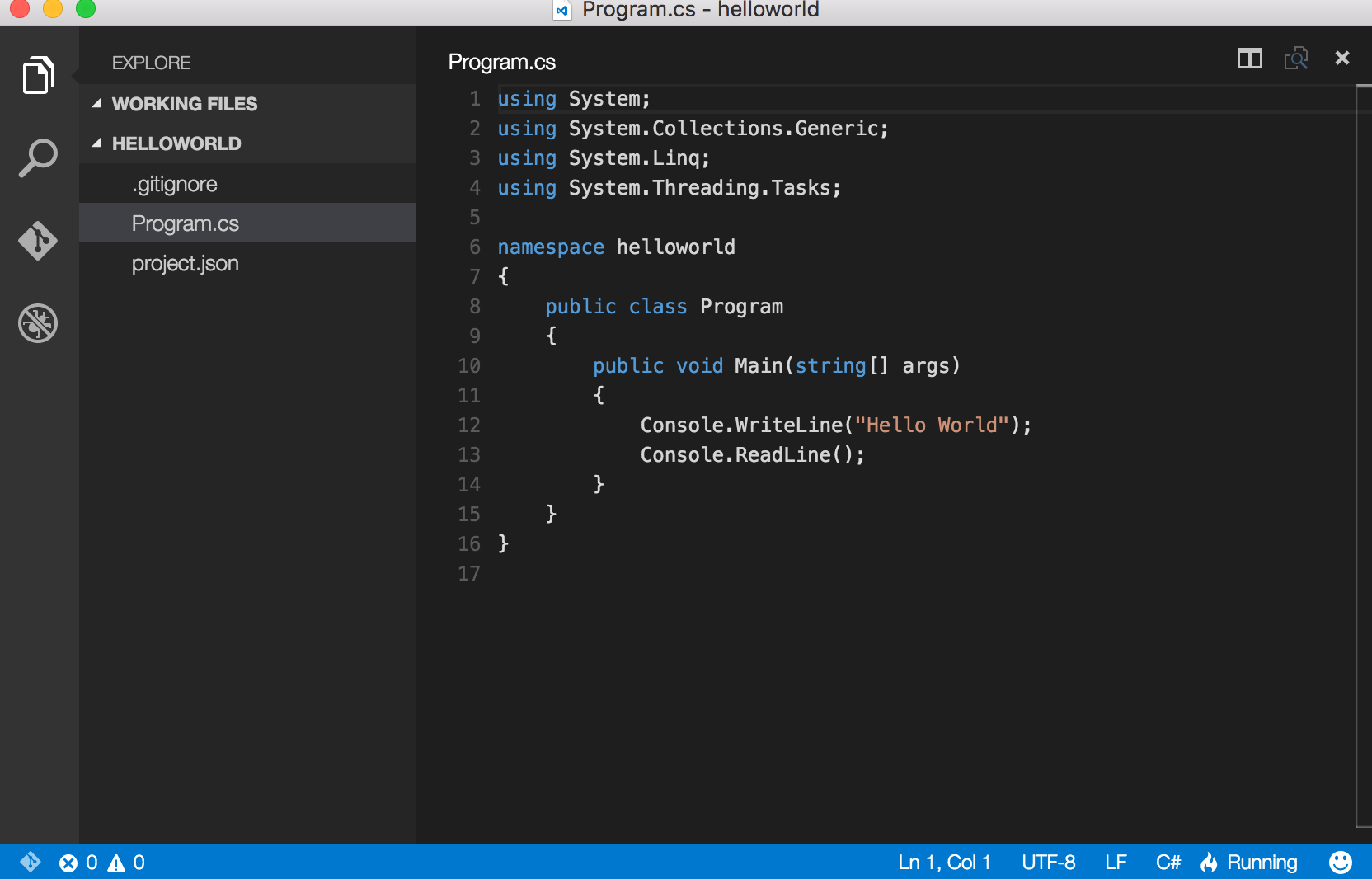
Prologue
I am pretty excited to begin C# coding on my new macbook pro.The primary reason is to begin coding whenever my heart sets in, without waiting for the system to load up and open Visual Studio 2015.
Back from the days of linux yore and Linux for you magazine, I was aware of Mono, the software which made the impossible, possible. Bringing .net to the linux masses. And I was extremely excited about it. ( We even had an argument with my teacher, in college about the fact that .net could be run on linux and the CLR was multi platform)
So last week, I got myself a copy of Mono and proceeded with installation. But due to some permission issues, in the installation was not successfull. There were some permission issues and there was little documentation available.
I gave up for a few days and decided to try again. All the instructions, posted below are from the site – http://www.codeproject.com/Articles/987288/NET-on-Mac-for-the-OS-X-n-b-without-Mono-via-Visua
Got myself a copy of ‘Visual Studio Code’ from the site https://code.visualstudio.com .Once you open, there will be nothing, but don’t get freaked out. The following steps will take care of it
Open ‘Terminal’ and issue the command
>>>ruby -e “$(curl -fsSL https://raw.githubusercontent.com/Homebrew/install/master/install“
You might then get a message like this
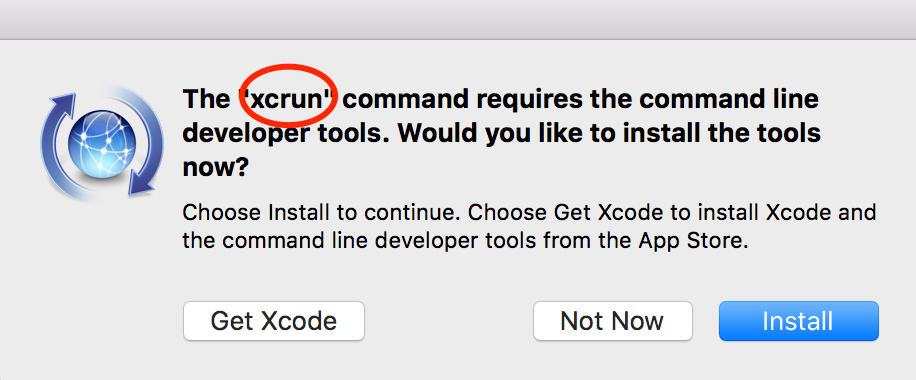
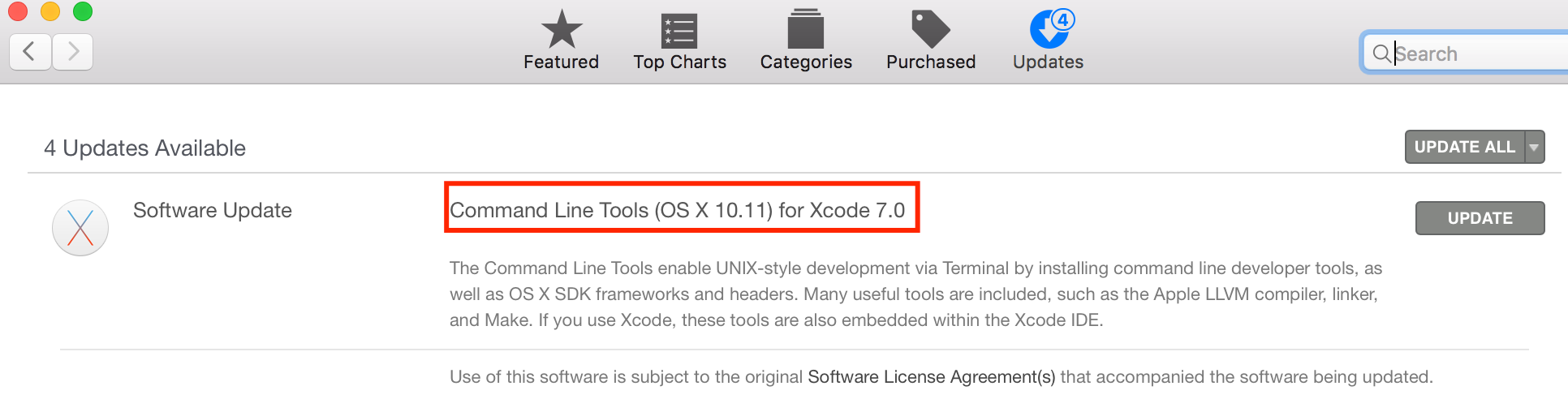
It then told me, searching for packages. This process took about 5 minutes. After this you can see the entry for the package in the ‘App store’ under ‘Updates’ ( see below)
In the meantime, I listened to Naughty boy – La la la ft. Sam Smith
xcode installation took about 4 minutes ( download size was 164 MB). Once the installation is complete, run the command again. This time, it will ask for the admin password, provide that ( make sure, you have enabled the ‘sudo’ account ) If you see ‘installation successful’, you are cool
Next proceed to install DNX
>>>brew tap aspnet/dnx
( in the website it is mentioned as ‘aspen/dnx/ <- notice the / at the end, and you will get the error ‘Error: Invalid tap name’)
>>>brew update ( you will get the message – Already up-to-date.)
>>>brew install dnvm
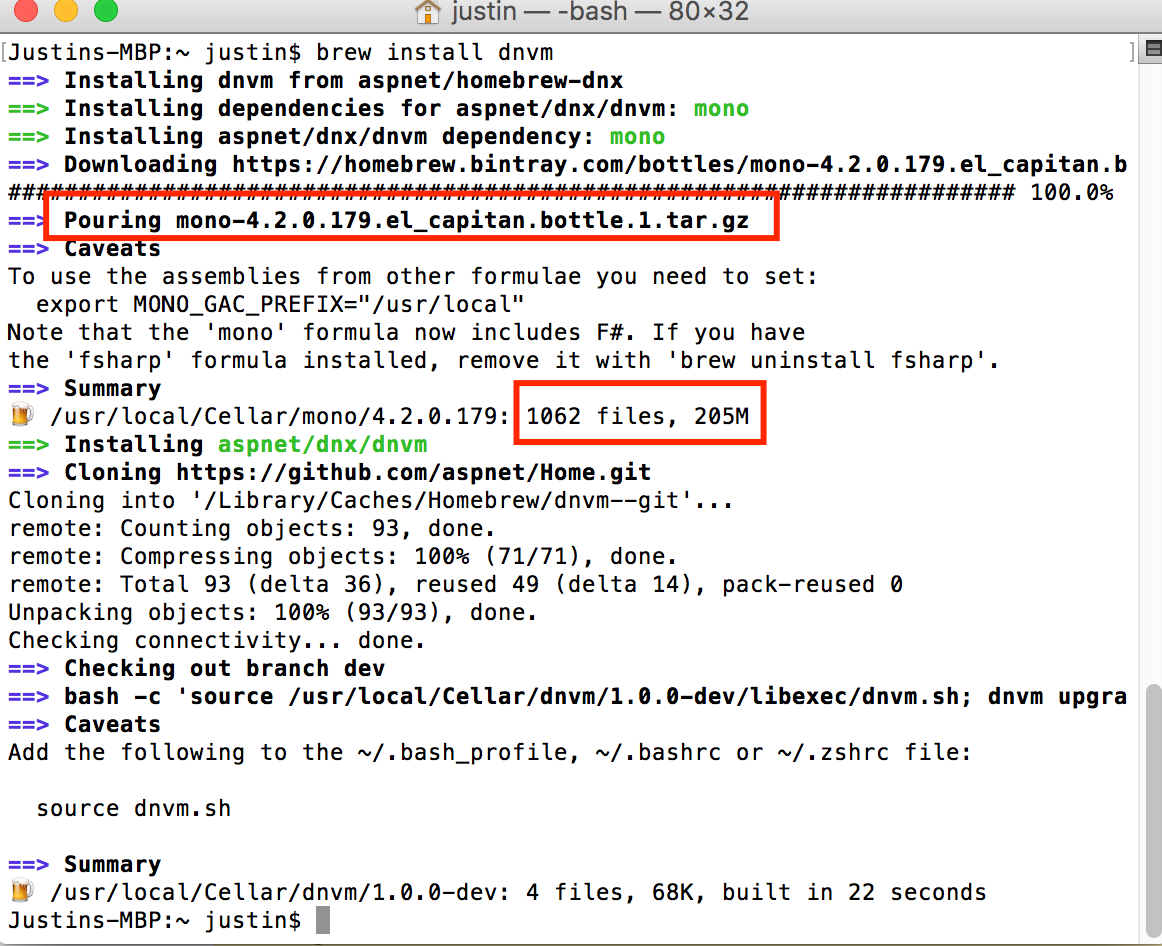
I was impressed to see that the correct version, was picked and downloaded ( see highlighted part, above)
Next let’s start with Yeoman installation
>>>brew install node
>>>npm install -g yo
>>>npm install -g generator-aspnet
Now cd to ‘Documents’ create a new folder for development and create your first hello world program using yo. finally you can open the files using Visual Studio code