Introduction – Writing your windows phone app
Writing a windows app would be dream of every new age C# programmer 🙂 And it has been mine for quite sometime. In our last post, we talked about setting up your system for windows phone 7/8 development.
Last week I worked on a very simple application and I have described its details here. I hope the steps mentioned below might help you in your app development process
The app – Crossword helper
Functionality of the app
How many times have your wondered if there was someone to help when you are done with filling up with most of the parts of a crossword puzzle ? So you would have a situation like this : You would want to find out words that begin with c and end with t and has three letters, yeah I know that’s simple but how about a word that begins with s, the third letter being e and has 11 letters ? That’s where crossword helper comes into picture.
I have added a screenshot of the app in action. Here I have specified c.t. Which means, show all 3 letter words which begin with c and end with t
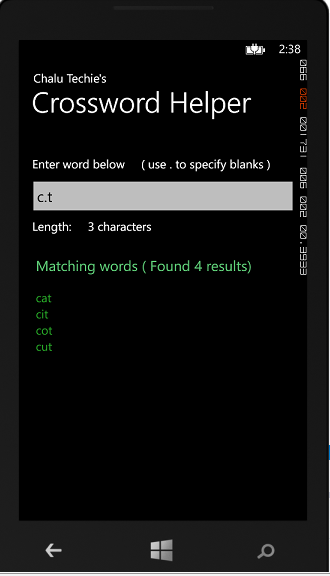
Crossword Helper App
Writing the code
Getting the dictionary file
The best place to get a well maintained dictionary file would be to hit a security website and I stumbled across page 4 of packet storm ( http://packetstormsecurity.com/Crackers/wordlists/page4 )
Express yourself – Regular Expressions
The code project tutorial gave some basic idea about regex and playing around with Expresso gave me the regex I was looking for.
The software contains a easy to use regular expression builder and real time testing mode. There are also several samples that you can use. Its a free software and it’s a great way to improve your regular expression building skills.
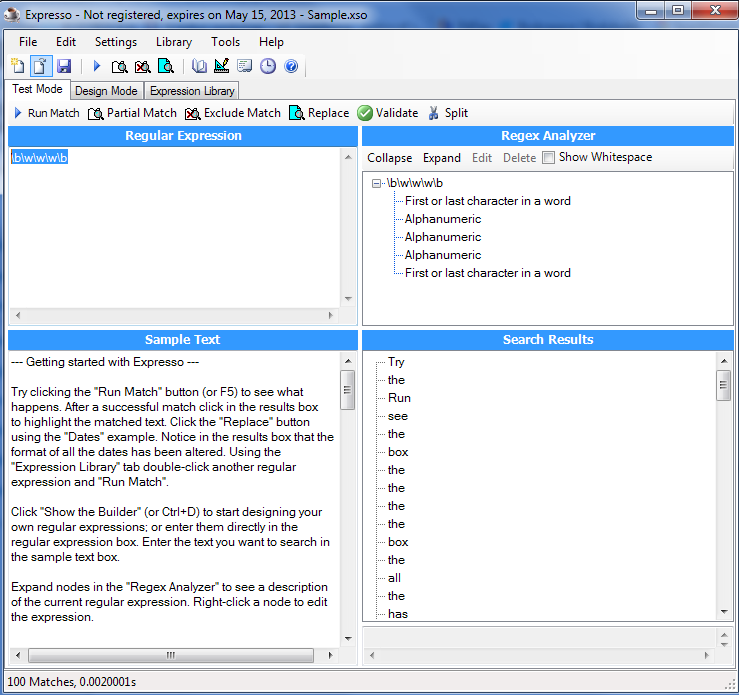
Reg exp testing in action
Adding dictionary file to the project
Add the dictionary file you downloaded to the project ( Just like how you add any other file). Now comes the interesting part. Click on the file and change the following
- Build Action : Content
- Coy to Output Directory : Do not Copy
See screenshot below, for clarity

Setting properties of embedded file in Visual Studio
Interesting code pieces
Reading file in one short rather than going line by line. Going through the stream line by line took more than 45 seconds for 800 KB + file, but using the code below, it took less than a second.
NOTE: Please make sure you repelct “english” with the name of the dictionary file that you intend to use
private string readFile(string fileName)

{

string fileContents;

Stream txtStream = System.Windows.Application.GetResourceStream(new Uri("english", UriKind.Relative)).Stream;

using (StreamReader sr = new StreamReader(txtStream))

{

fileContents = sr.ReadToEnd();

}

return fileContents;

}
A hidden bug in text box control
There is a tiny little harmless ( as of now) bug in our dear own text box control. Every time text changes within a text box, the text_changed event is fired twice. This bug has already been confirmed and you can see a quick fix here
So what’s next ?
I am planning to write another app which would be related to health and fitness. Once I complete it, I will be happy to share those details here. Until then, happy coding.